Blog
How I debloated a 1 GB Android TV with ADB, without root
Debloat Android TV with ADB, without root: my GHIA/KTC package list, commands to disable apps and restore the launcher, and results from a 1 GB TV.
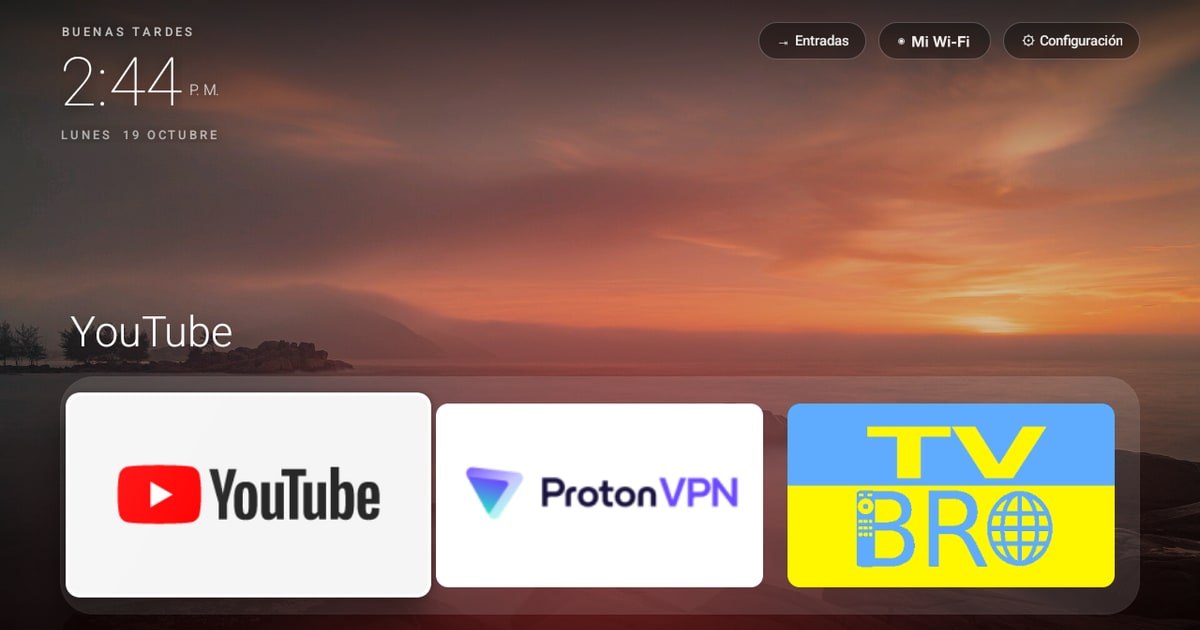
My bedroom TV is a budget GHIA Android TV 14 with 1 GB of RAM. Pressing Home was slow, and the stock launcher filled the screen with a sponsored banner, recommendations and apps I did not use. I wanted a smaller, calmer home screen without rooting the TV or making an irreversible change.
I used ADB over Wi-Fi to back up its state, disable selected packages, install a 4.7 MB launcher and verify every change. On this specific TV, the home screen’s measured proportional set size (PSS) fell from 107 MB to 39 MB: a 63% reduction. Ads and Automatic Content Recognition (ACR) disappeared from the home experience, while HDMI, Chromecast and the essential Android services continued to work.
Short answer: you can debloat many Android TV devices without root by using ADB’s
pm disable-usercommand. Back up first, identify every package for your exact model and disable rather than uninstall. Package names and behavior vary by manufacturer, so do not paste a generic debloat list into your TV.
I drove the work with Claude inside OpenCode, using the open-source tv-home repository as a starting point. The useful pattern was not “let the AI do anything”; it was plan → ask → act → verify, with small reversible steps and evidence after each one.
Results at a glance
| Measurement | Before | After |
|---|---|---|
| Home screen memory (PSS) | 107 MB | 39 MB (−63%) |
| Home screen | Sponsored banner and promoted rows | Clock, wallpaper and selected apps |
| ACR/content tracking package | Enabled | Disabled |
| Apps shown by the launcher | 16 | 3 in the dock and 3 in the grid |
| Browser | Slow preinstalled browser | TV Bro, 6.8 MB build |
| Recovery path | None documented | Backup-derived restore script with --dry-run |
These numbers describe one GHIA/KTC television under my test conditions; they are not a benchmark for every Android TV or Google TV device.
Before starting: risks and prerequisites
ADB, or Android Debug Bridge, is Google’s developer protocol for opening a shell, transferring files and installing applications on Android. It is powerful enough to leave a television without a working Home screen if the wrong package is disabled.
Only do this on a device you own or administer. Before changing anything:
- Enable developer mode on the TV: Settings → Device Preferences → About → press OK on “Build” seven times.
- Enable USB debugging in Developer options. On this model, the vendor also exposed ADB on the local network at port 5555; other devices may require Android’s Wireless debugging and pairing flow.
- Keep the TV and computer on a trusted network.
- Record the original launcher, enabled packages and system settings.
- Confirm the manufacturer’s identity before sending any write command.
My Fire TV Stick was connected to the same TV and network, so this last point mattered. I gave the agent an explicit boundary:
Only modify the television. Do not touch any other device, including the Fire TV.
The starting point and tools
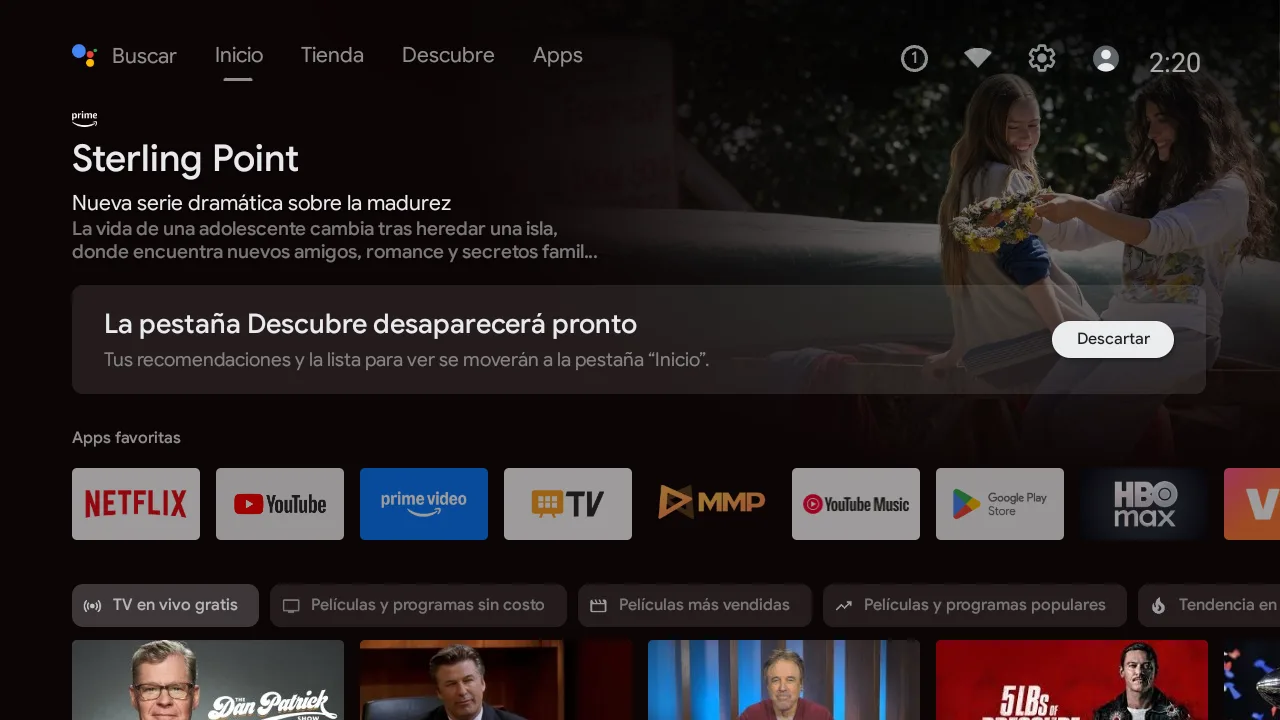
The stock launcher opened with a Prime Video promotion, “free live TV” rows and trending content. It was using scarce memory on a system with only 913 MB of usable RAM.
The tv-home project, inspired by tv-vibehack, already provided most of the plumbing:
| Path | Purpose |
|---|---|
tools/tv.py |
Small pure-Python ADB client for shell commands, screenshots and chunked APK uploads |
tools/find-tv.sh |
Scans the local subnet for ADB and Cast endpoints |
tools/disable.sh and restore.sh |
Applies or reverses a documented package list |
launcher/ |
Minimal Apple TV-style launcher made with Android framework APIs |
The launcher has no AndroidX dependency, no Gradle build and no network permission. That kept both the APK and its runtime footprint small.
1. Find and verify the correct Android TV
ADB over a network is a TCP connection authenticated with an RSA key pair. The first connection displays an Allow USB debugging? prompt on the television. Google’s ADB documentation explains the official connection and authorization flow.
The repository also supports adb-shell, a Python implementation of the ADB protocol:
from adb_shell.adb_device import AdbDeviceTcp
from adb_shell.auth.sign_pythonrsa import PythonRSASigner

device = AdbDeviceTcp("192.168.x.y", 5555, default_transport_timeout_s=120)
device.connect(rsa_keys=[PythonRSASigner(public_key, private_key)])
print(device.shell("getprop ro.product.model"))
I did not trust “the first host with port 5555 open.” The read-only discovery process correlated three signals:
- mDNS advertised the television’s friendly name.
- Port 5555 accepted an ADB connection.
- The Cast
eureka_infoendpoint on port 8008 returned the expected device name and build.
After pinning that IP for the session, I queried Android properties and stopped unless they matched the intended hardware:
ro.product.manufacturer = KTC
ro.product.brand        = GHIA
ro.product.device       = stanford
ro.build.version.release = 14
The Python client initially timed out during authorization. I connected once with Google’s adb binary, accepted the prompt and reused that already trusted key with the Python client. It was less elegant, but safer than repeatedly changing authentication settings.
2. Back up before disabling anything
The first new script was tools/backup.sh. It is read-only on the television and saves a timestamped snapshot on the computer:
tv 'pm list packages -f --show-versioncode' > packages-all.txt
tv 'pm list packages -e' > packages-enabled.txt
tv 'pm list packages -d' > packages-disabled.txt
tv 'cmd package resolve-activity --brief \
  -a android.intent.action.MAIN \
  -c android.intent.category.HOME' > home-activity.txt
tv 'settings list global' > settings-global.txt
tv 'settings list secure' > settings-secure.txt
tv 'settings list system' > settings-system.txt
tv 'dumpsys meminfo <launcher-package>' > meminfo-home.txt
tv --shot screen.png
Two files prevented subtle restoration mistakes:
packages-disabled.txtrecorded what the factory had already disabled. The restore process should not enable software that was disabled before I started.home-activity.txtrecorded the real launcher component. This television used classic Android TV (com.google.android.tvlauncher/.MainActivity), not the Google TV launcher assumed by the original script.
From that snapshot, the agent generated restore-from-backup.sh. It compares the original and current states, re-enables only packages that were originally enabled, restores the original Home activity and supports --dry-run so every command can be reviewed first.
3. Disable packages; do not uninstall them
Android exposes two operations that are often called “debloating,” but their recovery characteristics are different:
| Command | Effect for user 0 | Recovery |
|---|---|---|
pm uninstall --user 0 <package> |
Removes the app for that user and can remove its data | Sometimes recoverable with cmd package install-existing |
pm disable-user --user 0 <package> |
Leaves the app installed but prevents it from running or appearing | Reversible with pm enable <package> |
I used only disable-user. It gave me a straightforward rollback and avoided pretending that a system APK had actually been removed from the read-only system partition.
Android TV debloat package list: what I disabled and kept
The agent grouped the 141 packages and asked me about anything that might be part of my normal use. Package names below are examples from this exact KTC/GHIA firmware, not a universal list:
| Package | Role on this GHIA/KTC TV | My decision and limits |
|---|---|---|
tv.anoki.acr.anokiacroptin |
ACR/content-recognition component | Disabled on this TV; verify the exact package on your firmware. |
android.autoinstalls.config.ktc.pai |
Vendor configuration for promoted app installs | Disabled after reviewing the installed apps. |
com.mediatek.android.leanbacklauncher.partnercustomizer |
Partner customizations and promotional rows | Disabled; check how your stock launcher behaves afterward. |
com.google.android.tvrecommendations |
Recommendation rows in the stock launcher | Disabled; this removes a feature you may want to keep. |
fusion.android.tv.demo |
Retail demo mode | Disabled on my household TV. |
com.google.android.tvlauncher |
Original Android TV Home screen | Disabled only after installing and testing its replacement. |
com.google.android.tungsten.setupwraith |
Google setup application and another Home candidate | Disabled to resolve a Home conflict on this configured TV; not a general debloat recommendation. |
com.mediatek.wwtv.tvcenter |
Live TV and HDMI inputs | Kept enabled: it handles essential input functions on this model. |
There is no universal safe-to-disable list. These decisions describe one television, not a compatibility test for Chromecast, Nvidia Shield or every Android TV box. Keep the original package state so you can reverse each change.
ADB commands to inspect, disable and restore one package
The commands below use Google’s adb from the computer, rather than the repository’s tv helper. Replace TV_SERIAL with the exact identifier shown by adb devices for the television you verified. For network ADB this is often an IP address and port. Stop if the device is offline or unauthorized.
Start with read-only inspection and save the primary user’s enabled and disabled package lists:
adb devices
adb -s TV_SERIAL shell getprop ro.product.model
adb -s TV_SERIAL shell pm list packages --user 0 -e > packages-enabled.txt
adb -s TV_SERIAL shell pm list packages --user 0 -d > packages-disabled.txt
adb -s TV_SERIAL shell dumpsys package tv.anoki.acr.anokiacroptin
Use a new backup directory for each session so these files do not overwrite an earlier snapshot. The following pair is an example for the ACR package I identified on my TV, not a command to run on every model. Run the first only after verifying the package and choosing to disable it; the second reverses that decision if it was originally enabled:
adb -s TV_SERIAL shell pm disable-user --user 0 tv.anoki.acr.anokiacroptinadb -s TV_SERIAL shell pm enable --user 0 tv.anoki.acr.anokiacroptinAfter each change, test Home, the remote, inputs, casting and the apps you use. Re-enable the last changed package if a feature stops working. These package lists record state; they are not a full backup of app data or firmware.
I kept Chromecast, but disabled streaming apps duplicated on my Fire TV Stick, the ad-supported channels app, the unused media player and the stock browser. I replaced the browser with TV Bro, an open-source browser designed for remote-control navigation. I verified the APK’s SHA-256 digest against the project’s GitHub release before installing it.
I did not touch Play Store, Google Play services, Settings, the keyboard, TalkBack, the remote service or the Assistant. Most importantly, I kept com.mediatek.wwtv.tvcenter, the vendor application handling live TV and HDMI inputs on this device.
The package list lived in a plain text file with a reason beside every line. One command was sent per shell invocation because chained package-manager commands had stopped early without an obvious error during testing.
4. Replace the stock Home screen safely
Pressing Home sends an Android intent with ACTION_MAIN and CATEGORY_HOME. Apps declaring that intent are launcher candidates, and Android resolves them using their priority and the user’s preferred activity.
The intended sequence was:
pm install -r tvhome.apk
cmd package set-home-activity --user 0 com.mihir.tvhome/.MainActivity
pm disable-user --user 0 com.google.android.tvlauncher
The install script originally disabled the stock launcher without first checking whether installation had succeeded. That could leave the TV with only Android’s minimal FallbackHome. I changed the flow so the stock launcher remains untouched unless pm install returns Success:
echo "$output" | grep -q '^Success' || {
  echo "Install failed; stock launcher left untouched."
  exit 1
}
This firmware had another launcher candidate: com.google.android.tungsten.setupwraith, Google’s setup application. Once the stock launcher was disabled, SetupWraith could claim Home with higher priority than the third-party launcher. I disabled it too and included it in the restore path.
The final verification happened from inside another app. I launched YouTube, pressed Home and inspected topResumedActivity to confirm that Android returned to com.mihir.tvhome/.MainActivity.
How to remove a custom Android TV launcher with ADB
Restore a working stock Home screen before disabling the custom launcher. The example below applies to my GHIA/KTC TV, whose backup recorded com.google.android.tvlauncher/.MainActivity. Replace the package and component with those in your own home-activity.txt; Google TV uses different components.
First re-enable the original launcher if your backup shows it was enabled:
adb -s TV_SERIAL shell pm enable --user 0 com.google.android.tvlauncherIf you also disabled SetupWraith during this experiment and it was enabled in the original backup, restore it separately:
adb -s TV_SERIAL shell pm enable --user 0 com.google.android.tungsten.setupwraithSet the original Home component and open it:
adb -s TV_SERIAL shell cmd package set-home-activity --user 0 com.google.android.tvlauncher/.MainActivity
adb -s TV_SERIAL shell am start --user 0 -n com.google.android.tvlauncher/.MainActivity
Open another app, press Home and confirm that the stock launcher appears. Stop if any command fails or Home does not work. Only after that check, disable the custom launcher from this experiment:
adb -s TV_SERIAL shell pm disable-user --user 0 com.mihir.tvhomeThis leaves its APK and data installed for recovery. It does not uninstall the app. Keep ADB available until you have verified the remote, HDMI inputs and Home again.
5. Build a 4.7 MB launcher without Gradle
The launcher is one Android Activity built with framework views such as FrameLayout, LinearLayout and a custom ScrollView. It includes:
- 12 locally bundled nature wallpapers decoded off the main thread as
RGB_565bitmaps; - a crossfade every ten minutes;
- deterministic D-pad focus links for every tile;
- an inputs menu based on
TvInputManagerand passthrough TV inputs; - localized resources in English and Spanish;
- no network permission.
Android’s TV Input Framework documentation describes the platform APIs behind input discovery. On this set, the launcher found Composite, Fire TV Stick, HDMI 1, HDMI 2 and Live TV.
The dock is configured with Android package names in a resource file:
<string-array name="dock_apps">
    <item>com.google.android.youtube.tv</item>
    <item>ch.protonvpn.android</item>
    <item>com.phlox.tvwebbrowser</item>
</string-array>
<string name="live_tv_package">com.mediatek.wwtv.tvcenter</string>
Instead of Gradle, the build script calls the Android SDK tools directly:
aapt2 compile --dir res -o res.zip
aapt2 link -o base.apk -I android.jar --manifest AndroidManifest.xml \
  --java gen -A assets --min-sdk-version 30 --target-sdk-version 34 res.zip
javac --release 11 -classpath android.jar -d classes $(find src gen -name '*.java')
d8 --min-api 30 --lib android.jar --output dex classes/**/*.class
zip -u unsigned.apk classes.dex
zipalign -f 4 unsigned.apk aligned.apk
apksigner sign --ks debug.keystore --out tvhome.apk aligned.apk
The pipeline is resources → generated R.java → JVM bytecode → DEX → ZIP alignment → signature. The final APK was 4.7 MB, mostly because of the wallpapers.
Problems I encountered and what fixed them
Play Protect blocked the first build
The first installation appeared to hang. A screenshot revealed a Play Protect message saying the app was built for an older Android version. The launcher targeted API 30; changing targetSdkVersion to 34 resolved the block on this TV.
This was an observation about this device and its Play Protect policy, not a general Android 14 rule. Android 14’s documented platform restriction blocks newly installed apps targeting lower than API 23, while security products and vendors may apply additional checks. See Google’s Android 14 minimum target API behavior change.
Targeting newer Android versions also exposed a compatibility requirement: runtime-registered broadcast receivers must declare whether they are exported. The system-only receivers were registered explicitly on recent versions:
if (Build.VERSION.SDK_INT >= 33) {
    registerReceiver(receiver, filter, Context.RECEIVER_EXPORTED);
} else {
    registerReceiver(receiver, filter);
}
Google documents these flags in its guide to context-registered broadcast receivers.
A vendor app enabled itself again
After the Fire TV switched the television’s input, the ad-supported channels package appeared as explicitly enabled. Some vendor process had changed it back. I disabled it again and documented the single recovery command instead of introducing a permanent background watchdog.
The interface was hard-coded in English
I moved all visible text to res/values/strings.xml and added res/values-es/strings.xml. Android now selects “GOOD AFTERNOON” or “BUENAS TARDES,” along with localized labels and the device locale’s AM/PM marker.
What HDMI-CEC testing revealed
I also investigated why the Fire TV remote could power on and select the TV input but could not change the volume. HDMI-CEC is the control bus carried by an HDMI cable. Android exposes its state and message history through dumpsys hdmi_control; the Android Open Source Project documents the subsystem in its HDMI-CEC guide.
The log showed <Image View On> and <Active Source> messages from the Fire TV, confirming that power-on and input switching worked. During a live 30-second volume-button test, however, neither the CEC history nor the TV’s raw input events changed.
The defensible conclusion was limited to this setup: the configured Fire TV/television pair was not sending volume as CEC or as a recognized infrared code. The TV’s own remote used Bluetooth Low Energy, and the vendor IR configuration required root to inspect. I verified that the CEC settings matched the pre-change backup, so the debloat had not caused the volume limitation.
What the AI agent did well—and where I intervened
The agent was particularly useful for reading unfamiliar system output, comparing package states and identifying unsafe assumptions. It caught the installation script that could disable Home after a failed install, the restore logic that would have enabled factory-disabled apps, and the risk of connecting to the wrong ADB device.
I remained responsible for decisions that depended on context:
- which apps and TV features I actually use;
- accepting the RSA authorization prompt;
- pressing remote buttons and observing the physical television;
- deciding which packages were safe to disable;
- defining boundaries such as “do not touch the Fire TV.”
That division of labor mattered. An AI agent can inspect evidence and automate repetitive work, but it cannot infer which household device or feature is expendable. Every state-changing action required an explanation, my approval and a verification step.
I applied the same principle when I freed more than 12 GB in Hotmail by classifying about 70,000 emails with Jev: the model proposed decisions, but nothing was deleted until I reviewed it.
Frequently asked questions
Can you debloat Android TV without root?
Yes, on many Android TV devices you can disable apps for the primary user with ADB and pm disable-user --user 0. This does not remove the system APK and can usually be reversed with pm enable. Availability of network ADB and the package names depend on the manufacturer and firmware.
Is pm disable-user safer than uninstalling an app?
It is easier to reverse because the package and its data remain installed. It is not risk-free: disabling a launcher, Settings, the remote service or a vendor input package can still break essential functions. A model-specific backup and restore path are mandatory.
Will these exact package names work on every Android TV?
No. They came from one GHIA television built by KTC on a MediaTek platform. Google TV, Nvidia Shield, Chromecast and other vendor images use different components. Inspect your own package list and verify each package before changing it.
How do I restore the original launcher?
Re-enable only packages you disabled during this experiment that were enabled in the backup, then restore the original Home component with cmd package set-home-activity. The recovery section above gives the commands for this GHIA/KTC model. Disable the custom launcher only after confirming that the stock Home works.
Can I disable com.mediatek.wwtv.tvcenter?
I kept it enabled. On this GHIA/KTC TV, com.mediatek.wwtv.tvcenter handles live TV and HDMI inputs. Treat it as an essential vendor component unless you have model-specific evidence and a tested recovery path.
What is anokiacroptin on Android TV?
On my TV the full package name is tv.anoki.acr.anokiacroptin, an Automatic Content Recognition component. I disabled it as part of removing content tracking. The short name alone is not enough to identify an app on another firmware; inspect the full installed package before changing it.
Should I disable com.google.android.tungsten.setupwraith?
Not as a routine cleanup step. It is Google’s setup application. On this already configured TV it competed for Home after I disabled the stock launcher. I disabled it to address that specific conflict and recorded how to restore it. Other devices can depend on it for setup or recovery.
Where are the Android TV debloat scripts on GitHub?
The starting tools are in the upstream tv-home GitHub repository, including its package-management scripts. The backup-derived restore flow described here is a GHIA-specific adaptation; do not assume the upstream scripts reproduce it. Review each script against your own firmware before running it.
Does this also work on Fire TV, Samsung Tizen or LG webOS?
No. This workflow targets Android TV and Google TV devices with authorized ADB access. Fire OS is Android-derived but has different packages and policies; Tizen and webOS use different operating systems entirely.
The main lesson
The launcher became smaller and calmer, but the most reusable result was the process: identify the exact device, capture its initial state, make one reversible change, then verify the visible and system-level result.
If you want to reproduce the experiment, start with tv-home, read Google’s ADB documentation, and treat every package list as device-specific. The commands are the easy part; knowing what not to change is what keeps the television recoverable.
My web development work
This experiment is a personal project. Professionally, I work as a Shopify and Liquid developer in Mexico and build WordPress sites and custom WooCommerce plugins. My web development case studies document the client work, including what I built and how I tested it.
Loading post views…
Post views are unavailable right now.